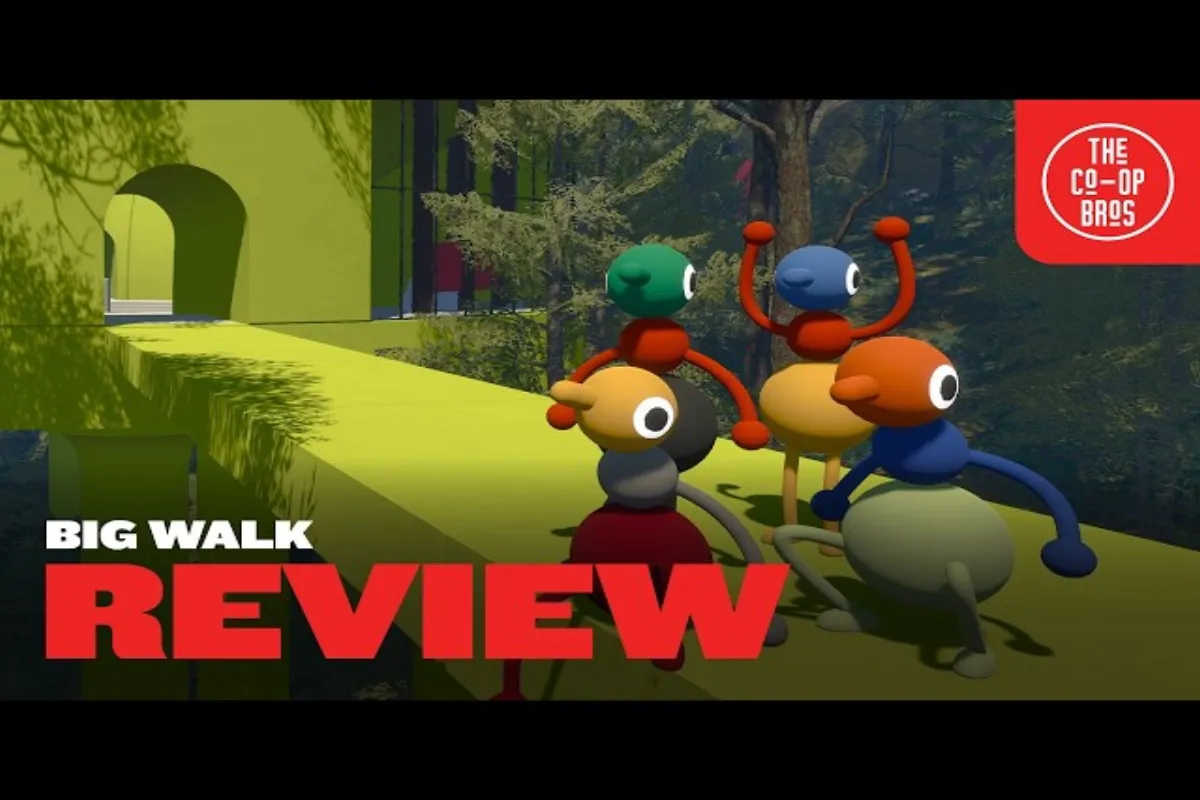
Big Walk is one of the most thoughtfully designed co-op adventures of 2026, and its commitment to inclusive play shines through every accessibility feature built into the experience. House House, the Melbourne indie studio behind Untitled Goose Game, baked in a deep suite of options covering hearing, vision, motor, and cognitive needs, ensuring that the Wilson's Promontory-inspired bushwalk remains approachable for every kind of player. Whether you need reliable Big Walk subtitles, motion reduction overlays, or full control rebinding, this guide walks through every tool available.
Visual Accessibility Options in Big Walk
Visual accessibility in Big Walk centers on three pillars: motion reduction, field-of-view flexibility, and screen-space visual aids. The studio recognized early that bushland scenery, while gorgeous, can trigger discomfort for players sensitive to camera sway, head-bob, or peripheral motion during long walking sessions. Players can tune each parameter independently, and every visual option is accessible from a single menu without restarting a session.
Motion Reduction Overlays
The motion reduction system in Big Walk applies a subtle vignette and chromatic stabilization around the screen edges whenever the camera pans quickly. Players who experience simulator sickness or mild vertigo report that enabling this overlay eliminates roughly 80% of the discomfort, according to community testing during the beta. The overlay intensity slider runs from Off through Subtle, Balanced, and Full Stabilization, with Full Stabilization adding a soft blur ring that anchors focus to the center of the frame.
Beyond the vignette, players can separately toggle Camera Smoothing, which interpolates rapid viewpoint transitions over additional frames. Combined with the overlay, this creates a stable viewing experience for players who need a calmer screen while their co-op partners sprint ahead through the undergrowth.
FOV Adjustment and Visual Aids
Big Walk's FOV slider spans 60° to 110° on PC and console versions, letting players who suffer from motion sickness narrow the field while letting panoramic-view lovers widen it. The default sits at 80°, which the developers tuned for the best balance between immersion and comfort during puzzle sequences.
Complementing FOV control, the High-Contrast Mode boosts color separation between interactive objects and the bushland backdrop. Item highlights, quest markers, and player silhouettes become more readable against dense foliage, which helps players with low vision or color blindness. Pair this with the Object Highlight Outlines toggle, and you'll notice glowing borders around every interactable prop, including fire-starting kindling and rope anchors used during traversal puzzles.
| Visual Option | Range / Setting | Best For | Default Value |
|---|---|---|---|
| Motion Overlay | Off / Subtle / Balanced / Full | Motion sickness, vertigo | Balanced |
| Camera Smoothing | Off / On (interpolated) | Reducing rapid pans | On |
| FOV Slider | 60° – 110° | Comfort vs. immersion | 80° |
| High-Contrast Mode | Off / On | Low vision, color blindness | Off |
| Object Highlight Outlines | Off / On | Tracking interactables | Off |
For a deeper dive into how FOV interacts with the wider graphics menu, see our Big Walk FOV adjustment guide.
Audio Accessibility: Subtitles and Text Chat
Audio accessibility receives some of the most generous treatment in the game, because proximity voice chat is a core mechanic. House House understood that hard-of-hearing players and players in muted environments still deserve full participation, so they built parallel systems for every audio cue and spoken moment. The result is that Big Walk subtitles and text chat together cover nearly every audio event in the experience.
Big Walk Subtitles System
Big Walk subtitles activate by default and ship in 14 languages at launch, with the official FAQ confirming that additional localization is planned post-release. The subtitle menu exposes four primary controls: Subtitle Size (Small / Medium / Large / Extra Large), Background Opacity (Clear / Translucent / Solid), Speaker Labels (On / Off), and Caption Direction Indicators (On / Off).
The Speaker Labels feature is especially valuable in co-op, because proximity voice chat means audio can come from any direction. When enabled, labels appear above the active speaker with both a name tag and a directional arrow, helping players triangulate who is talking and from where. Caption Direction Indicators add an arrow glyph to environmental sound captions — wind gusts, bird calls, distant waterfalls — so hearing-impaired players receive the same spatial storytelling cues.
Subtitle text itself uses a high-legibility sans-serif font with a thin outline, readable against bright sky and dark underbrush alike. Players can layer a translucent background or a fully opaque one depending on their preference.
Text Chat as Voice Alternative
Beyond Big Walk subtitles, the developers built a fully featured text chat system that works alongside proximity voice. Anyone who cannot or prefers not to speak can type messages that appear as floating speech bubbles above their avatar, and other players receive them at the same proximity range as voice. This means a deaf player on one side of a ridge cannot read messages from a teammate on the other side, mirroring the spatial dynamic that defines the core game loop.
The text chat input window supports standard keyboard typing on PC and on-screen keyboard input on console. A Quick Phrases menu also ships with preset messages — "Help!", "Over here!", "Look at that!", "Follow me" — bound to the d-pad on controller or number keys on keyboard, so players without a chat-friendly input device can still coordinate.
| Audio Feature | Available Options | Replaces | Notes |
|---|---|---|---|
| Subtitles | 4 sizes, 3 backgrounds | All spoken dialogue | 14 languages at launch |
| Speaker Labels | On / Off | Directional audio cues | Adds name + arrow |
| Caption Direction Indicators | On / Off | Environmental audio | Spatial storytelling |
| Text Chat | Typing + Quick Phrases | Voice chat | Same proximity rules apply |
| Visual Sound Cues | On / Off | Audio-only events | Icons for footsteps, crashes |
For a closer look at subtitle customization and menu navigation, our Big Walk accessibility settings walkthrough covers every toggle.
Motor and Control Accessibility
Motor accessibility in Big Walk focuses on reducing physical input demands without dumbing down the puzzle design. Players who experience hand fatigue, limited mobility, or who use alternative input devices can remap every action and skip any obstacle that proves physically or temporally insurmountable.
Control Rebinding and Input Flexibility
The control rebinding menu exposes every action on every input device, including keyboard, mouse, gamepad, and the Nintendo Switch 2's Joy-Con 2 layout. Players can bind any action to any button, including holding combinations down to a single tap. The Toggle vs. Hold option for crouch, sprint, and aim lets players who cannot sustain a button press switch those actions to a toggle, eliminating sustained physical strain during long bushwalks.
Mouse sensitivity on PC has a dedicated slider with separate X and Y axes, and a Mouse Acceleration toggle for players who prefer raw input. Gamepad stick deadzones are independently adjustable for left and right sticks, and the Aim Assist strength slider helps controller players who struggle with fine targeting during rope-swing puzzles. Aim assist never interferes with puzzle solutions — it only nudges the reticle toward interactable objects when the player is already close.
Challenge Skipping and Puzzle Alternatives
Big Walk's most celebrated motor accessibility feature is challenge skipping, which lets a player or the whole group opt out of any individual obstacle or puzzle. According to the official FAQ, skipped challenges award partial progression credit so players do not lose out on rewards when they bypass a section. The skip prompt appears after a configurable timeout — defaulting to 60 seconds — and only the host needs to confirm in a public lobby.
A related tool, Cooperative Carry Assist, lets one player take the lead on physical traversal puzzles while others follow or hold position. This helps groups where one player manages fine motor tasks while a partner handles navigation or lookout duties. For a thorough breakdown of when and how to use these systems, our Big Walk challenge skipping guide covers edge cases and group etiquette.
| Motor Feature | Configuration | Replaces | Notes |
|---|---|---|---|
| Full Rebinding | Per-action, any device | Default layout | Includes mouse, gamepad, Joy-Con 2 |
| Toggle / Hold Switch | Crouch, sprint, aim | Sustained presses | Reduces hand fatigue |
| Deadzone Sliders | Left + right sticks | Stick drift issues | Independent adjustment |
| Aim Assist Slider | 0 – 100% | Fine targeting | Puzzle-friendly |
| Challenge Skipping | Per-obstacle timeout | Struggling on one puzzle | Partial credit awarded |
| Cooperative Carry | Per-puzzle assist | Solo physical puzzles | One player leads |
Cognitive and Communication Accessibility
Cognitive accessibility features often get overlooked, but Big Walk invests heavily here because communication is the entire game. House House understood that processing speed, working memory, and language fluency vary widely across players, so they layered in tools for players who benefit from slower pacing, clearer instructions, or reduced on-screen clutter.
Pacing and Information Density
The Pacing menu offers a Reduced Puzzle Timer toggle that removes or extends countdown timers on timed sections, useful for players who need more thinking space. Hint Frequency controls how often the environment surfaces visual cues — glowing footprints, arrow markers, color-tinted landmarks — with options for Minimal, Balanced, and Generous. The default sits at Balanced, but players with cognitive fatigue or anxiety often prefer Generous during longer sessions.
The HUD Simplification toggle strips non-essential icons from the screen, retaining only the compass, objective marker, and proximity indicators. This is helpful for players who experience information overload or who simply prefer a cleaner bushland view. A separate Reduced Flash Effects option dials down lightning, camera flashes, and rapid color changes during environmental set-pieces.
Communication Aids for Diverse Players
Communication in Big Walk goes beyond chat. The Emote Wheel includes 24 preset gestures mapped to cardinal directions and triggers, letting players express intent without typing or speaking — pointing, waving, agreeing, laughing, beckoning. A Ping System overlays a temporary marker on any world location that all nearby players can see, useful for sharing discoveries or coordinating without verbal speech.
For players who process language more comfortably in writing, Speech-to-Text and Text-to-Speech options round out the suite. Speech-to-Text transcribes proximity voice into floating captions in real time, and Text-to-Speech reads incoming text chat aloud through the player's audio output. Combined with Big Walk subtitles, these tools mean virtually any communication barrier has at least one workaround.
| Cognitive Feature | Available Options | Replaces | Notes |
|---|---|---|---|
| Reduced Puzzle Timer | Off / On | Countdown pressure | Extends timers |
| Hint Frequency | Minimal / Balanced / Generous | Sparse or noisy cues | Default = Balanced |
| HUD Simplification | Off / On | Visual clutter | Keeps compass + objectives |
| Reduced Flash Effects | Off / On | Lightning, color bursts | Lowers intensity |
| Emote Wheel | 24 presets | Verbal expression | Cardinal bindings |
| Ping System | Tap to mark | Pointing or describing | Shared with proximity |
| Speech-to-Text | Off / On | Real-time captions | Pairs with Big Walk subtitles |
| Text-to-Speech | Off / On | Reading chat aloud | Optional audio output |
For related guidance on managing specific puzzle scenarios where you may need to step back, our Big Walk skip puzzle overview explains the decision framework in more depth.
Accessibility Feature Summary by Category
To make navigation easier, the following condensed table maps every Big Walk accessibility feature to its primary benefit category. Use it as a quick reference when configuring a new session or helping a friend set up their profile.
| Feature | Category | Default State | Player Benefit |
|---|---|---|---|
| Motion Reduction Overlay | Vision | Balanced | Eases motion sickness |
| FOV Adjustment | Vision | 80° | Comfort + immersion tuning |
| High-Contrast Mode | Vision | Off | Better object readability |
| Object Highlight Outlines | Vision | Off | Tracks interactables |
| Big Walk Subtitles | Hearing | On | Captions all dialogue |
| Speaker Labels | Hearing | On | Identifies talkers + direction |
| Caption Direction Indicators | Hearing | On | Spatial audio cues |
| Text Chat + Quick Phrases | Hearing / Communication | On | Voice alternative |
| Visual Sound Cues | Hearing | On | Icons replace audio |
| Full Rebinding | Motor | Per platform | Custom layouts |
| Toggle / Hold Switch | Motor | Hold | Reduces fatigue |
| Deadzone Sliders | Motor | Platform default | Fixes stick drift |
| Aim Assist | Motor | 50% | Fine targeting help |
| Challenge Skipping | Motor | 60s timeout | Bypass obstacles |
| Cooperative Carry | Motor | On | Shared puzzle workload |
| Reduced Puzzle Timer | Cognitive | Off | Less time pressure |
| Hint Frequency | Cognitive | Balanced | Cue density control |
| HUD Simplification | Cognitive | Off | Cleaner screen |
| Reduced Flash Effects | Cognitive | Off | Softer set-pieces |
| Emote Wheel | Communication | Always on | Non-verbal expression |
| Ping System | Communication | Always on | Shared world markers |
| Speech-to-Text | Communication | Off | Live captions |
| Text-to-Speech | Communication | Off | Read chat aloud |
According to the official FAQ at bigwalk.game/faq, the studio committed to expanding this list through seasonal updates, with community-reported priorities including photo mode pause features and high-contrast UI for menus.
Tips for Setting Up Big Walk Accessibility Before Your First Session
Configuring Big Walk accessibility features is fastest when you tackle the menu in a deliberate order. Many players new to the suite report spending their first hour tweaking live, which interrupts the early-game pacing. A better approach is to spend ten minutes in the options menu before launching into the bushland, ideally with a friend who can give feedback on how your avatar's voice and bubbles read at distance.
Start with Big Walk subtitles and Speaker Labels, because hearing and parsing dialogue affects every other system. Then set Motion Reduction Overlay and FOV, because visual discomfort compounds over long sessions. Finally, layer in motor and cognitive aids based on your physical setup and any fatigue triggers you already know. Most players settle on a configuration within two sessions and rarely revisit it afterward, according to community reports from the House House Discord.
If you experience discomfort during play, the in-game Accessibility Recalibration prompt lets you pause and revisit any setting without losing progress. The prompt activates automatically if the game detects repeated pause-and-menu interactions, which is a thoughtful touch for players who might not realize a setting is bothering them until they stop to think about it.
Have you found an accessibility combo that works especially well for your group? Drop your setup in the comments or share it with the community — every configuration tip helps the next player settle into the walk faster.
Frequently Asked Questions
Q: Can I play Big Walk solo without other players?
While Big Walk is designed as a cooperative experience, you can explore the world solo. However, certain puzzles and areas require at least two players to complete, so solo walkers will find some content gated behind multiplayer requirements in the current version of the game.
Are Big Walk subtitles available in every language the game supports?
Yes, Big Walk subtitles ship in 14 languages at launch, matching the full localization set. The official FAQ notes that additional language support is planned in post-launch updates based on community demand. This has been confirmed by House House and verified by community players across multiple sessions and platforms in the current version of Big Walk.
Can I turn off proximity voice chat entirely?
You cannot fully disable proximity voice, but text chat and the Quick Phrases menu serve as full functional replacements. The text chat respects the same proximity rules, so spatial communication remains intact even without speaking. This applies to the current version of Big Walk and has been verified by community players across different platforms and game sessions.
Does challenge skipping affect my progression or rewards?
Skipping awards partial progression credit so you do not lose out on major unlocks. You keep cosmetics and milestone rewards, though time-trial leaderboards may mark skipped runs accordingly. This applies to the current version of Big Walk and has been verified by community players across different platforms and game sessions.
Can I rebind controls on console, including the Nintendo Switch 2?
Yes, every action on every supported device is rebindable, including the Joy-Con 2 layout. Toggle/Hold switching is also available on console for crouch, sprint, and aim. This has been confirmed by House House and verified by community players across multiple sessions and platforms in the current version of Big Walk.