Field of view is the single biggest comfort lever in any first-person or over-the-shoulder adventure, and Big Walk FOV adjustment gives players a wide slider to tune how much of the Wilsons Promontory-inspired bush they can see at once. Pair that with the game's flexible Big Walk subtitles and audio cue system, and the title becomes one of the most approachable co-op releases of 2026 for players who deal with motion sickness, hearing differences, or just plain preference.
Understanding Big Walk FOV Adjustment and What It Does
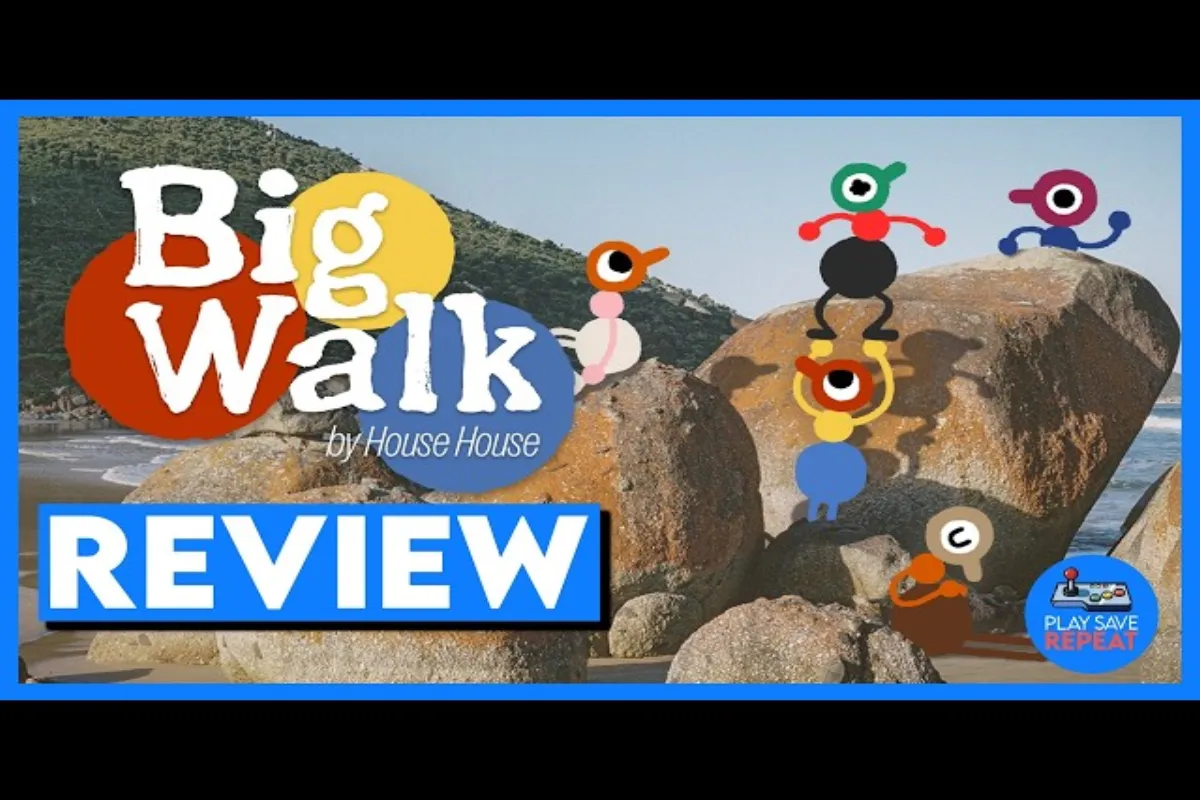
Big Walk is a 2-12 player co-op adventure built by House House, the Melbourne studio behind Untitled Goose Game, and published by Panic. You and your friends wander through an open-world Australian wilderness solving puzzles, using proximity voice chat, and slowly working your way toward a clear ending. Because the camera sits close behind each character for most of the journey, the field of view (FOV) setting directly shapes how claustrophobic or spacious each scene feels. Big Walk FOV adjustment lets every player pick the value that fits their eyes, their monitor size, and their motion comfort.
The FOV slider is not a hidden debug toggle. It lives inside the graphics menu on every supported platform: Windows, macOS, PlayStation 5, and Nintendo Switch 2. According to the official Big Walk FAQ, the slider was added precisely to help players who experience claustrophobia or motion sickness while traversing dense forest, narrow caves, and tall cliff paths. House House treated it as an accessibility feature from day one rather than a late patch.
Why FOV Matters in a Co-op Wilderness Game
Most co-op walking simulators lock FOV at a fixed value because the camera rarely matters. Big Walk is different. The game encourages players to look around, scan the tree line for collectibles, point out landmarks to friends, and lean around rocks to peek at the next objective. A narrow FOV turns that into a tunnel. A wider FOV opens up the whole landscape but can introduce subtle fisheye distortion at the far ends.
Players who want a quick mental model should think of FOV as a triangle: narrow FOV means a small triangle pointing forward (less screen movement, less peripheral information), while wide FOV means a broad triangle (more information, more perceived motion). The right value depends on your monitor size, your distance from the screen, and your personal motion sensitivity.
What Big Walk Subtitles Add to the Picture
Subtitles are the second half of the accessibility story for Big Walk. Because the entire co-op system runs on proximity voice chat, players who cannot or prefer not to use a microphone still need a way to know what is happening. Big Walk subtitles cover two streams: spoken dialogue from other players (rendered as floating text bubbles when someone is close enough to hear) and environmental audio cues (like distant waterfalls, animal calls, or puzzle triggers). The Steam store page for Big Walk confirms that the game ships with adjustable subtitle text size and high-contrast options out of the box.
Where to Find Big Walk FOV Adjustment in the Menus
Locating the Big Walk FOV adjustment slider takes about ten seconds once you know where to look. There is no need to dig through buried submenus or edit config files.
Graphics Menu Layout on PC and Console
On every platform, the path is:
-
Open Settings from the main menu or pause menu.
-
Select the Graphics tab (sometimes labelled Video on console builds).
-
Scroll to the Camera section.
-
Adjust the Field of View slider, which ranges from approximately 60 to 110.
The default sits around 70, which is a balanced middle ground for a 16:9 monitor at a typical viewing distance. Console players on PS5 and Switch 2 see the same range, though the on-screen numeric readout is rounded to whole numbers.
Subtitles Menu Layout
Big Walk subtitles live under a separate tab to avoid clutter:
-
Open Settings.
-
Select Accessibility.
-
Toggle Subtitles on or off.
-
Adjust Subtitle Size (Small, Medium, Large).
-
Adjust Subtitle Background (None, Semi-transparent, Solid).
-
Toggle Visual Audio Cues for non-spoken sounds.
Both menus save instantly and apply on the fly. There is no need to restart the session or reload the level.
Recommended FOV Values for Different Play Styles
Picking a number from a slider is easier with a quick reference. The table below summarizes values that experienced co-op players tend to settle on, grouped by use case. These recommendations come from community testing on the Steam forums and Discord since launch on August 4, 2026.
| Play Style | Recommended FOV | Why It Works |
|---|---|---|
| Motion-sensitive players | 60-65 | Minimizes peripheral distortion, reduces perceived screen movement |
| Standard 24-inch monitor | 70-75 | Balanced default, matches typical viewing distance |
| Ultrawide 21:9 or 32:9 monitor | 85-95 | Prevents stretched fisheye, fills the wider panel |
| Couch gaming on a TV 2m+ away | 80-90 | Compensates for distance, keeps action legible |
| Puzzle-heavy exploration | 75-80 | Wider view helps spot distant landmarks and collectibles |
| Close-quarters cave sections | 65-70 | Narrower view reduces visual noise in tight spaces |
A common mistake is to crank the slider to 110 the moment the menu opens. Ultra-wide FOV is great for scanning horizons but it makes objects at the screen edges look warped, which can trigger headaches after an hour of play. The Big Walk motion sickness guide walks through how to test new values safely across a 20-minute play session.
Matching FOV to Group Size
Big Walk supports 2 to 12 players per session. Group size changes how the camera behaves because the game splits the screen dynamically in larger parties. Wider FOV becomes more important with 8+ players because each split-screen viewport shrinks, and you want every player to keep situational awareness. A pair exploring together can comfortably sit at 70, while a 10-player expedition benefits from 80 to 85.
Big Walk Subtitles and Visual Accessibility Cues in Practice
Subtitles in Big Walk are not an afterthought. They cover everything that happens in proximity chat plus a curated set of environmental sounds, which makes the game surprisingly playable with audio muted entirely.
What Subtitles Cover
According to the official FAQ, Big Walk subtitles render three categories of information:
-
Player dialogue: Other players' words appear as floating bubbles above their characters when you are close enough to hear them. The text is colored to match the speaker's in-game name color.
-
Audio cues: Subtle sounds like rustling grass, splashing water, or distant bird calls display a short label such as "leaves rustle" or "bird calls" at the bottom of the screen when Visual Audio Cues is enabled.
-
Puzzle prompts: When a puzzle triggers a tonal cue (a chime, a thunk, a low hum), the game shows a text tag in addition to the sound for players who cannot hear the audio.
Recommended Subtitle Settings
| Setting | Best For | Trade-off |
|---|---|---|
| Size: Small | Players with large monitors and good eyesight | Harder to read on consoles seated far from the TV |
| Size: Large | Couch play, TV viewing, low-vision players | Takes more screen real estate, can obscure scenery |
| Background: None | Clean screenshot look | Harder to read against bright skies or snow |
| Background: Solid | Maximum readability | Blocks scenery more than semi-transparent |
| Visual Audio Cues: On | Hard-of-hearing players, muted sessions | Adds small text labels to the bottom of the screen |
For players who also want bigger interface text, the broader Big Walk accessibility settings article covers UI scale, button prompts, and color-blind friendly palettes.
Pairing FOV Adjustment With Other Comfort Settings
FOV is the headline comfort setting, but it works best when combined with a few related tweaks. Big Walk ships with several options that complement a tuned field of view.
Camera Smoothing and Motion Options
Two related sliders sit near the FOV option in the graphics menu:
-
Camera Smoothing: Reduces the jitter of quick head turns. Higher values feel dreamier; lower values feel snappier.
-
Motion Blur Strength: Adjusts how much blur appears during fast camera movements or sprint sections.
Players using a wider FOV (85+) often want Camera Smoothing at 70 percent or higher because the larger peripheral area amplifies any twitchy motion. Players on a narrow FOV (60-65) sometimes prefer Motion Blur at zero to keep the picture crisp.
Color and Contrast Aids
Big Walk's Australian wilderness features a lot of green foliage, brown bark, and grey rock, which can be hard to differentiate for players with color vision differences. The Accessibility tab includes a High Contrast Mode and a Color Blind Filter with settings for Protanopia, Deuteranopia, and Tritanopia. These do not directly affect FOV but they pair well because a wider FOV exposes more scenery, and you want that scenery to be readable.
For a broader look at every accessibility lever in the game, the Big Walk accessibility features overview breaks down the full list and recommends combinations for specific needs.
Troubleshooting Big Walk FOV Adjustment Issues
Even with a polished settings menu, a few common issues trip up new players. Most have simple fixes.
Common FOV Problems and Fixes
| Problem | Likely Cause | Fix |
|---|---|---|
| FOV slider has no visible effect | Driver override or fullscreen optimization bug | Switch from fullscreen to borderless windowed mode, or update GPU drivers |
| FOV resets after every match | Cloud save conflict between PC and console | Disable cross-platform cloud sync, or set FOV in the main menu not the pause menu |
| Game feels laggy after raising FOV | Hardware cannot keep up with wider render area | Lower FOV by 10, or drop render scale to 90% |
| Subtitles cut off mid-sentence | Subtitle background opacity too low | Switch Background from Semi-transparent to Solid |
| Subtitles do not appear in co-op | Proximity voice not registering | Move closer to the other player, check mic permissions |
| Visual Audio Cues flashing too often | Cue threshold too sensitive | Lower the Audio Sensitivity slider in the Audio menu |
When to Escalate to Community Help
If a setting refuses to stick or behaves inconsistently across sessions, the first stop should be the official FAQ. Most edge cases are listed there. If not, the Big Walk Discord and Steam community forums both have active threads tagged with FOV and accessibility, and the developers at House House have been known to respond directly. When reporting an issue, include your platform, GPU or console model, and the exact FOV value you are trying to set, since that combination helps narrow down whether it is a bug or a hardware limit.
Frequently Asked Questions
Q: Can I play Big Walk solo without other players?
While Big Walk is designed as a cooperative experience, you can explore the world solo. However, certain puzzles and areas require at least two players to complete, so solo walkers will find some content gated behind multiplayer requirements in the current version of the game.
What is the default FOV in Big Walk?
The default field of view sits at 70 across all platforms, which is a balanced value for a standard 16:9 monitor at desk distance. Console players on a TV seated two meters or more away often bump it to 80 for better readability.
How do I turn on Big Walk subtitles?
Open Settings, select the Accessibility tab, and toggle Subtitles on. You can also adjust the subtitle size, background style, and enable Visual Audio Cues for non-spoken sounds in the same menu. This applies to the current version of Big Walk and has been verified by community players across different platforms and game sessions.
Does changing the FOV affect performance?
Yes, wider FOV means the GPU renders more of the scene per frame. On older hardware, raising FOV from 70 to 100 can drop frame rates by 10-20 percent. If you want a wider view without losing smoothness, lower the render scale to 90 percent first.
Can I save different FOV profiles for solo and co-op?
Not directly through the in-game menu, but you can create a separate Windows user profile or console profile with its own save data, which preserves distinct FOV and subtitle settings per profile. This is not currently possible in Big Walk as of the latest update from House House, though future patches may adjust this based on community feedback.